

Refer HERE for Internal Support Information.
This outlines the information and the steps that are needed to familiarise oneself with the NetPOS Flexischools interface.
Subjects ▲ ▼
About ▲ ▼
What Is It? ▲ ▼
Flexischools is Australia’s #1 online ordering and payment platform for schools, suppliers and parents.
The Flexischools App is an easy to set up, all-in-one solution that can handle all your school’s cashless payment needs; from online canteen ordering, to uniform shop, special event ticketing, fundraising and on-campus cash-free sales using your existing school ID cards, and EFTPOS.
It provides convenience, security, flexibility and market-leading knowledge of the Australian school environment.
What Is Required? ▲ ▼
- Swiftpos v10.78.11+
- A NetPOS registration that includes the Flexischools interface.
- Ensure the Charge / Redemption (#151) POS Key is added to the appropriate Keyboard Layout. Refer HERE for more information.
- Ensure it appropriately captioned. For example. Flexischools Charge.
- Ensure it has the Flexischools option selected in the Available Interfaces drop-down list.
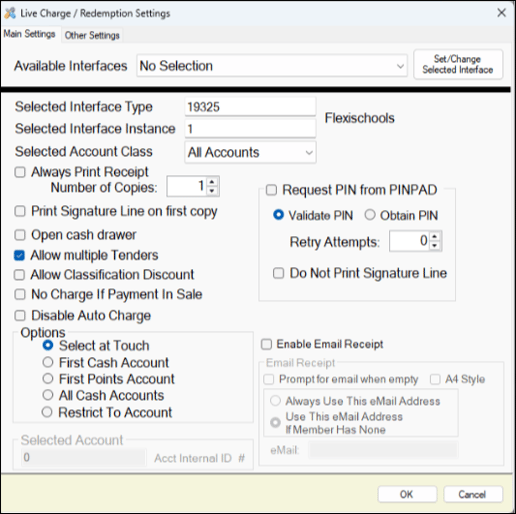
Example of the configuration of the Charge / Redemption (#151) POS Key for the Flexischools interface
- Card Masking maybe considered when implementing the Flexischools interface.
What Is Not Supported? ▲ ▼
-
Redemptions are not supported when using the Charge / Redemption (#151) POS Key in conjunction with the Flexischools interface.
When Is It Used? ▲ ▼
Used when integration with Swiftpos and the Flexischools App is required. Generally integration is required when Swiftpos is implemented in schools as their preferred POS system in school canteens.
How To? ▲ ▼
How To GET STARTED? ▲ ▼
Do as follows:
- Review About and ensure the steps outlined HERE are addressed.
- In NetPOS
- Enter the credentials provided by Flexischools into the NetPOS Flexischools Settings screen.
- Configure the remaining settings as is appropriate for the Venue.
- Save the changes.
- Restart the NetPOS service.
In Touch:
- Scan/Swipe the student's card.
- Enter the amount to be charged/refunded to the student's account.
-
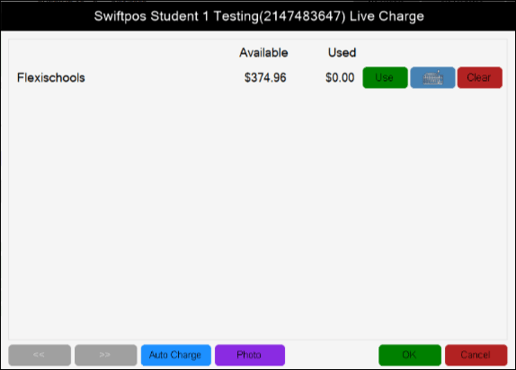
Select the Charge / Redemption (#151) POS Key to open the Live Charge screen. For example:
-
Select the Use option opposite the Flexischools entry to charge/refund the amount to the student's Flexischool account.
- Finalise the sale.
- Refer HERE for more information.
Screens ▲ ▼
Flexischools Settings Screen ▲ ▼
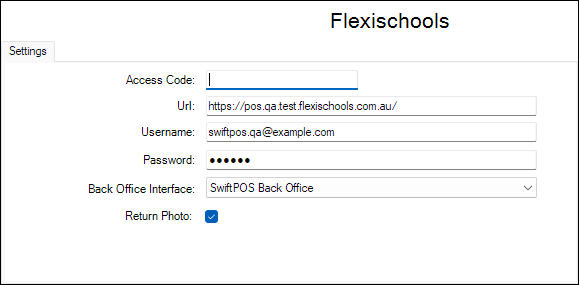
To access, refer HERE. Used to configure the NetPOS Flexischools interface.
- Access Code - Default is blank. Displays/Enter the Access Code that must match the same Access Code configured at the Swiftpos Touch terminal. This is not mandatory but does provide an additional level of security.
- URL - Displays/Enter the URL provided.
-
Username / Password - Enter the Username and Password provided.
- Back Office Interface - Select the Back Office instance to link to, if multiple Back Office instances are available to NetPOS.
- Return Photo - Select to ensure an image of the student is returned. To ensure the image is displayed in Touch when their card is swiped, ensure the Always Pop Up Customer Status Window when Member Added to sale option is selected.
End of article ▲