
This outlines how to Import A Windows Authentication Certificate for Swiftpos.
Subjects ▲ ▼
What Is Required? ▲ ▼
- An authentication certificate and accompanying password will need to have been provided by a 3rd Party for which access authorisation is being obtained.
- The person importing and installing the certificate will need to have Administrator level authorisation in Windows.
How To Import A Windows Authentication Certificate? ▲ ▼
If a Venue has been provided with an authentication certificate in the form of a certificate file, as well as an accompanying password, this will need to be imported and installed on the computer running Swiftpos Back Office. To do this, do as follows:
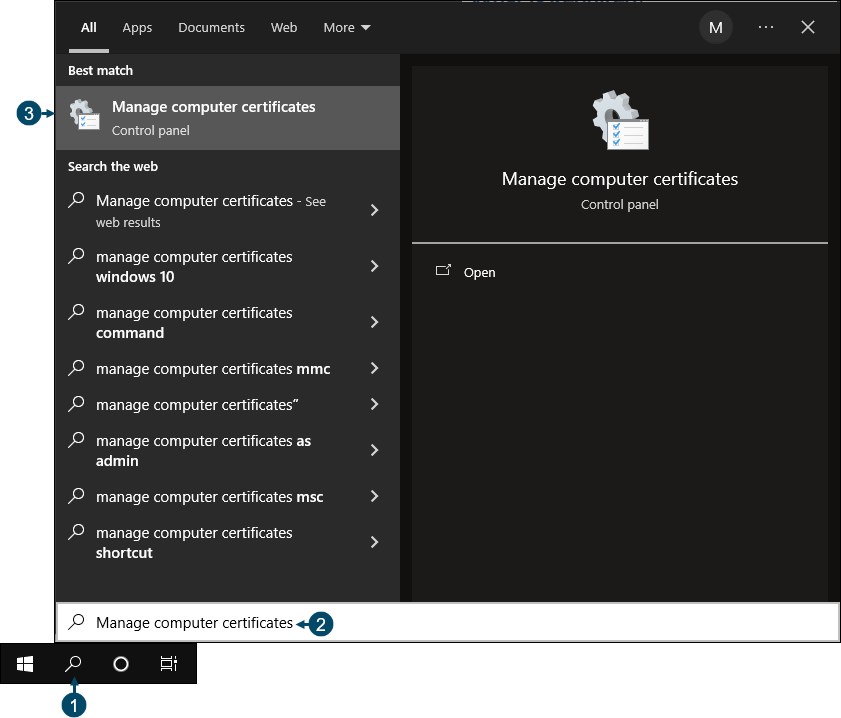
- Select the Windows Search toolbar icon.
- Enter Manage computer certificates.
- Select the Manage computer certificates option to display a screen similar to the one below.
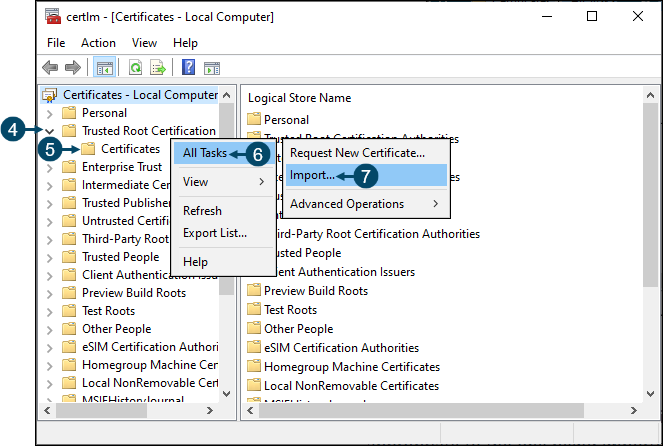
- Select from the types of Certificates listed on the left hand side of the screen, the type appropriate to the one being imported, and expand it.
- Right click the Certificates option.
- Select the All Tasks menu option.
- Select the Import option to open the Certificate Import Wizard.
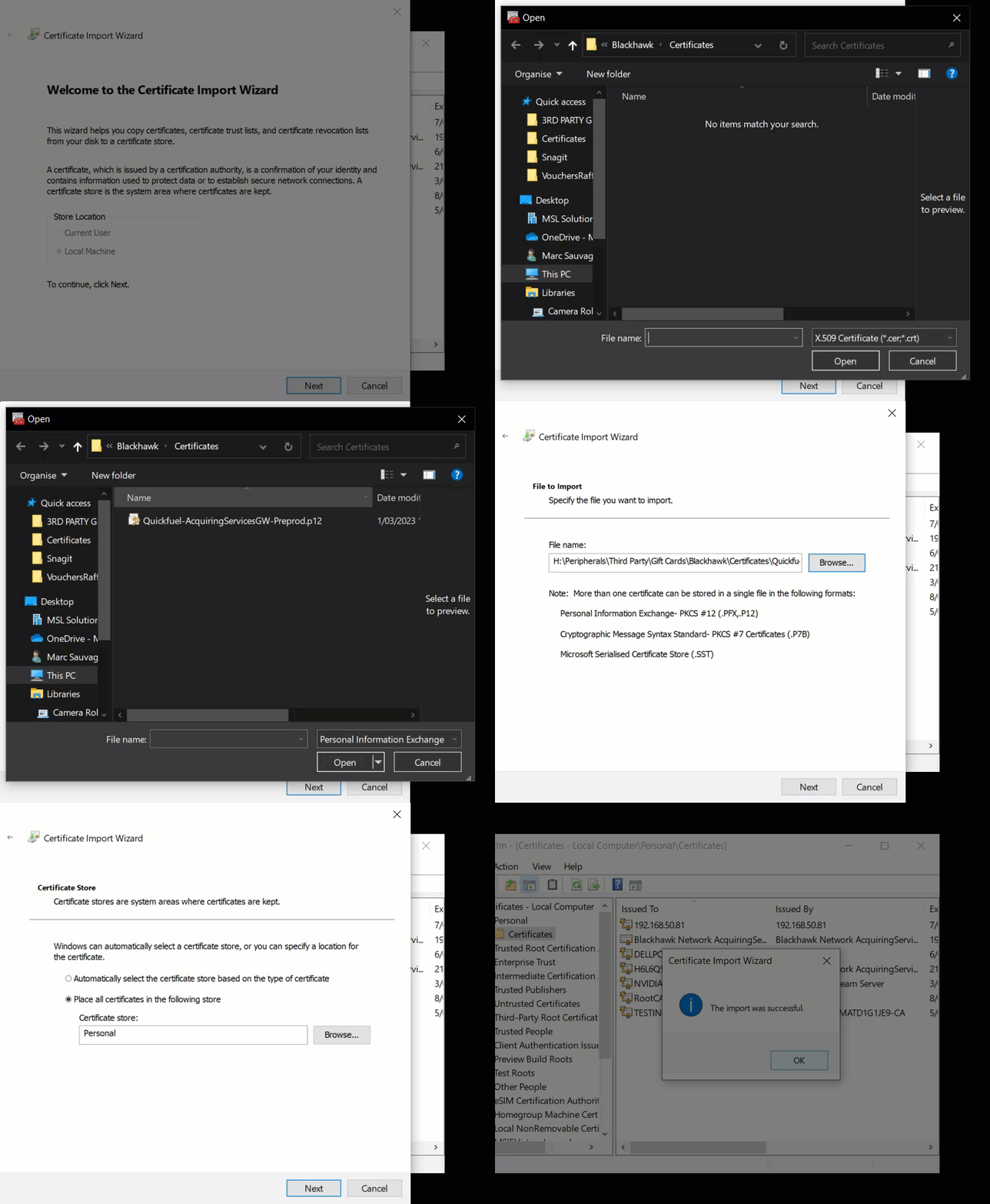
- Follow the Wizard steps as captured below to select, import and install the provided Certificate file and password. The example below is one of a Personal type Certificate being installed.
End of article ▲