
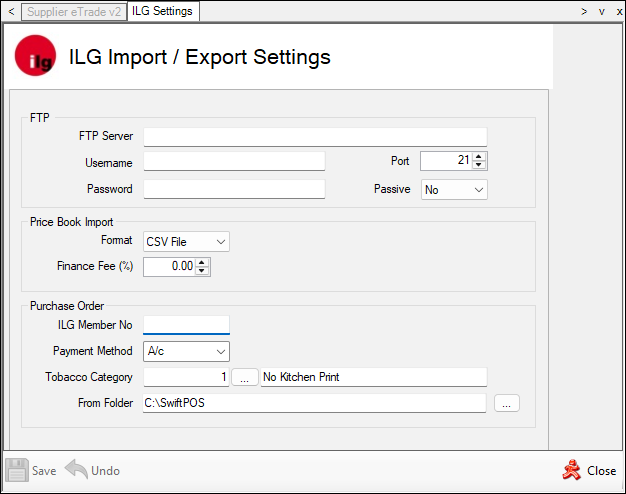
This provides information about the settings required for the downloading/importing of ILG (Independent Liquor Group) Price Book data and for the exporting of Purchase Orders to ILG.
Screens ▲ ▼
ILG Import / Export Settings Screen ▲ ▼
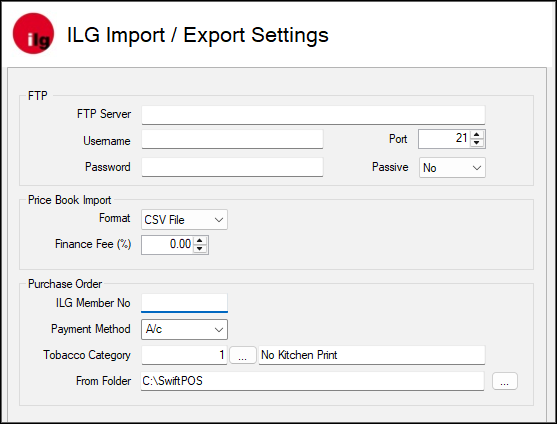
To access, select the Setting option in the ILG section of the Supplier eTrade v2 screen. Used to configure the settings for the ILG (Independent Liquor Group) interface.
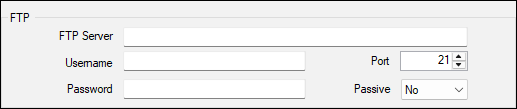
- FTP Server - Displays/Enter the Host Name or IP address of the FTP Server that is required to be connected to. For example, ftp.swiftpos.com.au or 192.168.0.1.
- Username/Password - Enter the login details to establish a connection.
- Port - Displays/Enter the FTP Server Port number. Port 21 is the most commonly used port for FTP servers.
- Passive - Select Yes if using a NAT type router, else select No.
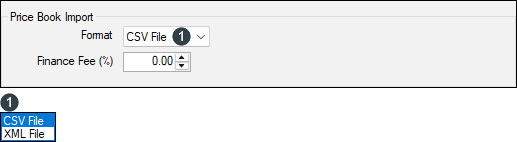
- Format - Select from the drop-down list either CSV or XML. Once selected, download or import using one of the options displayed HERE.
- Finance Fee (%) - Displays/Enter the Finance Fee as a percentage. If set, the selling price imported via the Price Book, will be increased by the percentage value set here.
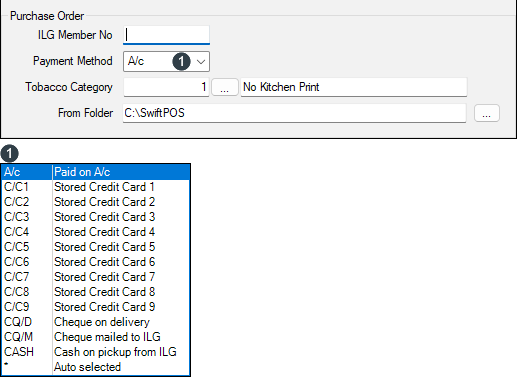
- ILG Member No. - Displays/Enter your ILG Member number provided by ILG.
- Payment Method - Select from the drop-down list one of the listed payment methods. The Payment Method is used in conjunction with sending Purchase Orders.
Notes ...
The Payment Method selected will need to be the same as that provided to ILG with your Member Application.
- Tobacco Category - Displays/Select the Restricted Purchase Category configured in Swiftpos for Tobacco products.
Notes ...
This is required to ensure that the ordering of Products assigned to the Category selected here, appear on a separate Purchase Order and are not included with other non Tobacco Products.
- PO Send Folder - Displays/Enter the local FTP folder in which submitted ILG Purchase Orders will be written for sending to ILG.
End of article ▲