
This outlines How To Assign A New ID To A Clerk / Staff Member in Touch.
How To? ▲ ▼
Do as follows:
- Access the Clerk Tools menu in Touch. Refer HERE for more information.
- Select the Assign New ID option to display the following:
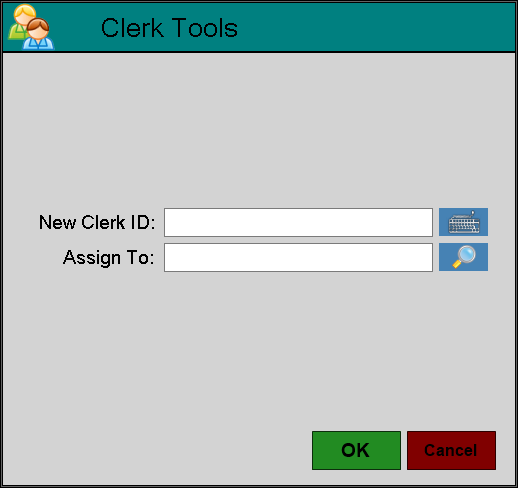
- Enter the new RFID/Card# to be assigned, into the New Clerk ID field.
- Select the search option to locate and select the Clerk/Staff Member to which the new RFID/Card# will be assigned.
- Select OK.
- A confirmation notification will be displayed.
Notes ...
The Clerk's/Staff Member's details will be updated in Back Office.
End of article ▲