
This outlines how to add a Clerk/Staff Member in Touch.
How To? ▲ ▼
Do as follows:
- Access the Clerk Tools menu in Touch. Refer HERE for more information.
- Select the Add Clerk option to display the following:
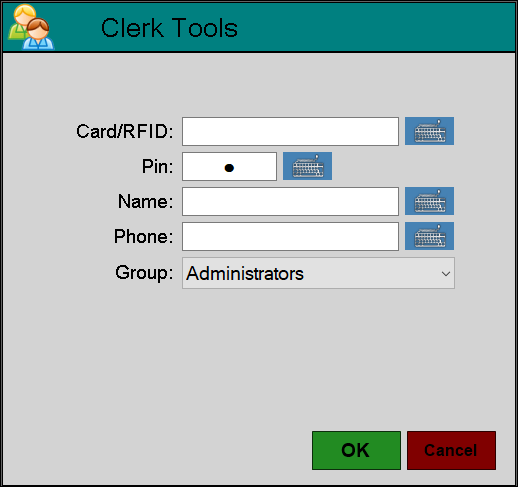
- Enter the RFID/Card# to be assigned to the new Clerk/Staff Member.
- Enter a PIN. A maximum of 9 numeric characters can be entered.
- Enter the Clerk's/Staff Member's Name.
- Enter the Clerk's/Staff Member's Contact # in the Phone number field.
- Select from the drop down list the Group to which the Clerk/Staff Member is to be assigned.
- Select OK.
- A confirmation notification will be displayed.
Notes ...
The Clerk's/Staff Member's details will be updated in Back Office.
Also, when adding a Clerk/Staff Member using this feature, the Clerk/Staff Member will be automatically assigned to the Security Group with the lowest level of authorisation.
End of article ▲