
This outlines the information and the steps that are needed to familiarise oneself with the Hanshow interface in Service Monitor.
Subjects ▲ ▼
About ▲ ▼
What Is It? ▲ ▼
The Swiftpos Hanshow interface is used to send Product information to Hanshow to support its electronic shelf labels.
What Is Required? ▲ ▼
- Venues will need to be registered for the Hanshow interface in order to access this feature. Email registrations@Swiftpos.com.au to obtain the appropriate registration.
Screens ▲ ▼
Hanshow Screen ▲ ▼
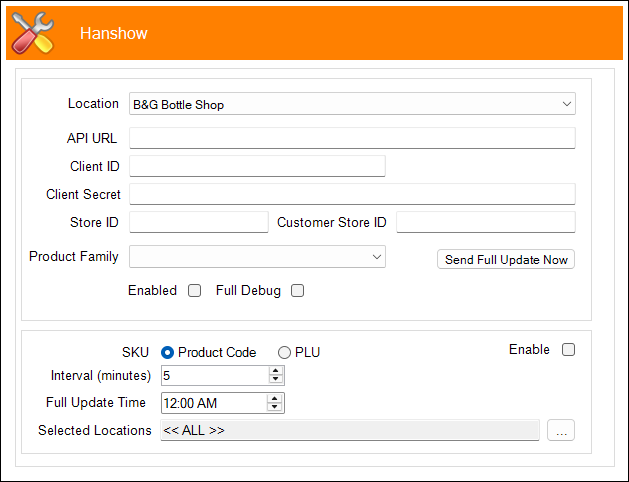
To access, refer HERE for more information. Used to configure the settings required for the Hanshow interface.
- Location - Select from the drop-down list the Swiftpos Location for which the settings configured, will apply.
- API URL - Display/Enter the URL provided by Hanshow.
- Client ID - Display/Enter the Client ID provided by Hanshow.
- Client Secret - Display/Enter the Client Secret provided by Hanshow.
- Store ID - Display/Enter the Store ID provided by Hanshow.
- Customer Store ID - Display/Enter the Customer Store ID provided by Hanshow.
- Product Family - Displays/Select from the drop-down list of only web enabled Families the Family of Products for which Product information will be sent to Hanshow.
- Send Full Update Now - Select to send a full update to Hanshow for the selected Location.
- Enabled - Select to ensure the selected Location is enabled for the Hanshow interface.
- Full Debug - Select to enable.
- SKU - Select to send either one of the following options as the Stock Keeping Unit (SKU) to Hanshow:
- Product Code
- PLU
- Enable - Select to ensure the
- Interval (minutes) - Displays/Set the interval in minutes, to ensure a check is done to send any changes to Hanshow.
- Full Update Time - Displays/Set the time each day an update will be sent to Hanshow.
- Selected Locations - Select the select option to the right of the Selected Locations field to select the Swiftpos Locations that will appear in the drop-down list of Locations HERE. Displays the text << ALL >> if all Swiftpos Locations are selected, otherwise, the IDs of the Swiftpos Locations selected will be displayed as CSV variables. For example, 1,2,3.
End of article ▲