
Subjects ▲ ▼
About ▲ ▼
What Is Required? ▲ ▼
- Venues will need to be registered for the Events module for access to this feature.
- Ensure at least one staff member has the appropriate Back Office Security Group access to the following Clerk Group Permissions:
- Events > Event Questions
When Is It Used? ▲ ▼
Used to configure Questions that can be posed to patrons when registering their attendance for an Event via the Event Portal. Questions posed are fully customisable and aimed to ensure that preparations can be made to ensure the experience patrons have is an enjoyable, and an optimal one.
How To? ▲ ▼
Screens ▲ ▼
Event Questions Screen ▲ ▼
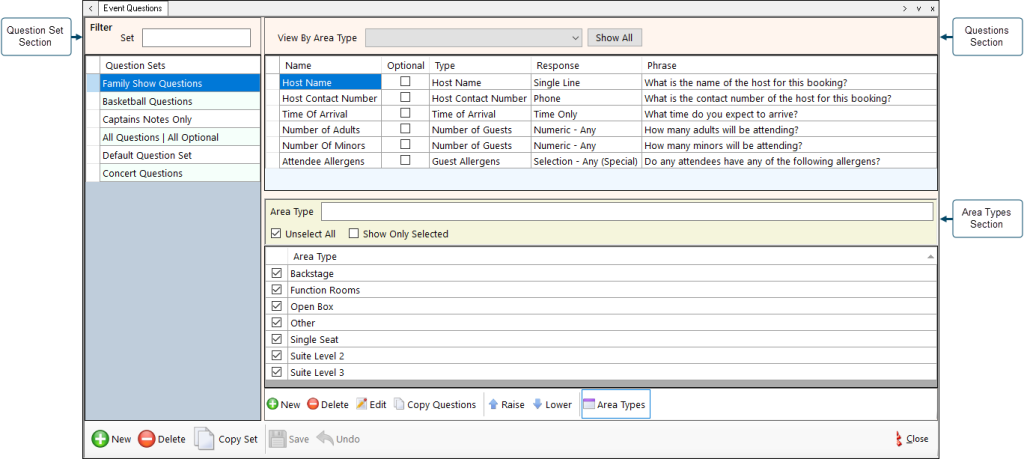
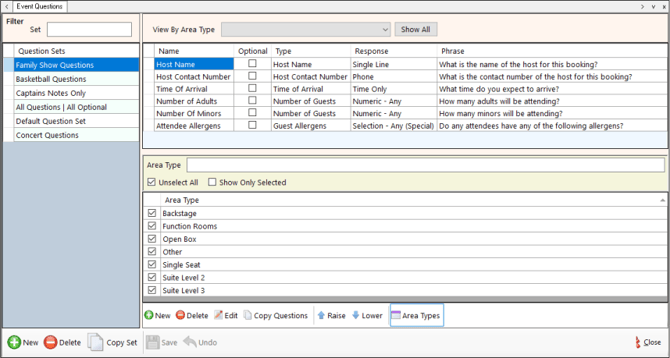
To access, select the Event Questions option from the Events menu in Back Office. Used to configure Questions that can be posed to patrons when registering their attendance for an Event via the Event Portal. Questions posed are fully customisable and aimed to ensure that preparations can be made to ensure the experience patrons have is an enjoyable, and an optimal one.
Sections ▲ ▼
Question Set Section ▲ ▼
The section referred to here, is the section on the left-hand side of the Event Questions Screen.
Filters Section
Used to limit the number of rows displayed in the grid section. Once all filters have been selected, select the Apply option to apply them. Otherwise, select the Reset option to clear all filters.
Grid Section
Lists the Question Sets currently available.
Footer Section
- New - Select to add a row to the grid to add a new Question Set.
- Delete - Select to delete the selected Question Set.
- Copy Set - Select to copy the selected Question Set and all it's Questions, and add the copy as a new row to the Question Set grid.
- Save/Undo – Select to save/undo the changes made.
Questions Section ▲ ▼
The section referred to here, is the top section on the right-hand side of the Event Questions Screen.
Filters Section
Used to limit the number of rows displayed in the grid section. Once all filters have been selected, select the Apply option to apply them. Otherwise, select the Reset option to clear all filters.
Grid Section
Lists the Questions associated with the selected Question Set, along with their:
- Name - Displays the name given to the Question.
- Optional - Indicates whether the Question is optional (selected) or mandatory (unselected).
- Type - Displays the Type of Question.
- Response - Displays the type of Response expected.
- Phrase - Displays the Phrase that the patrons will see and be asked to respond to.
Footer Section
- New - Select to open the Question Builder and add a new Question to the selected Question Set.
- Delete - Select to delete the selected Question.
- Edit - Select to open the Question Builder screen and edit the selected Question
- Copy Question - Select to view the list of existing Questions and select one or more to add to the selected Question Set.
- Raise/Lower - Select to raise/lower the selected Question up/down in the grid.
Area Types Section ▲ ▼
The section referred to here, is the bottom section on the right-hand side of the Event Questions Screen.
Filters Section
Used to limit the number of rows displayed in the grid section. Once all filters have been selected, select the Apply option to apply them. Otherwise, select the Reset option to clear all filters.
Grid Section
Lists the Area Types associated with the selected Question Set.
Footer Section
- Area Types – Toggle select to show/hide the Area Types section. Select to manage the Area Types that are assigned to the selected Question Set. Once selected it will display the Area Types along with a tick box depicting those that are currently assigned.
Question Builder Screen ▲ ▼
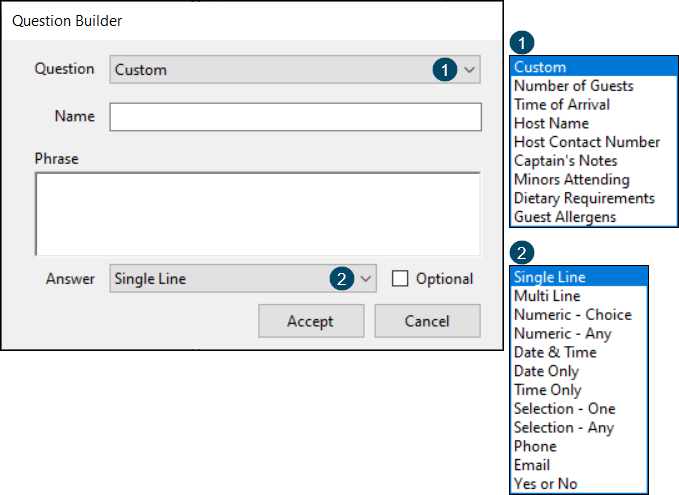
To access, refer HERE and HERE.
- Question - Select from the drop down list the Type of Question one of the following:
- Custom - Select to configure a customised Question.
- Preconfigured Questions - Select from one of the remaining preconfigured Questions listed. For example, Number of Guests, Time Of Arrival or Host Name, etc.
Notes...
The Custom option is available if none of the preconfigure Question Types are appropriate.
- Name - Displays/Enter the name appropriate for the Question being added/edited.
- Phrase - Displays/Enter the Question in the form of a Phrase that the patrons will see and be asked to respond to.
- Answer - Select from the drop down list of available Types of Responses the one most appropriate to the Response that is required.
Notes...
The Answer option will only be enabled when the Custom option is selected from the Question drop down list above.
- Optional - Select to ensure that the Question being asked of patrons is optional. By default Question added will be considered mandatory.
Select the questions you wish to copy to this Question Set Screen ▲ ▼
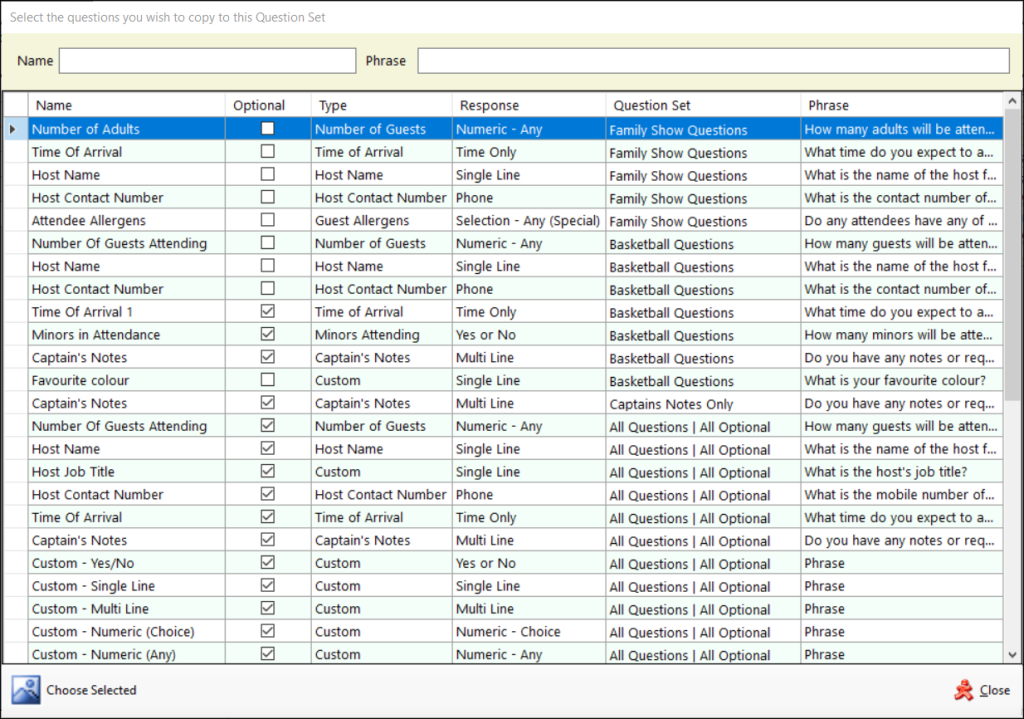
To access, refer HERE and is used to select a Question from the current list of available Questions. Once selected it will be copied and added as new Question to the Questions grid above.
End of article ▲