
This provides information regarding the EFT48 - N-Genius (Network International) app in a Touch POS device.
Refer HERE for Support information
Subjects ▲ ▼
About ▲ ▼
What Is Required? ▲ ▼
- Swiftpos v10.79.12+ or v10.80+
- .Net 4.6.2
-
C++ 2015 redistributable
What To Consider? ▲ ▼
- Sites must have a current Software Enhancement Licence to use this feature.
When Is It Used? ▲ ▼
EFT48 - N-Genius (Network International) is recommended for any Android smartphone that is to be used as an EFTPOS device using the N-Genius app.
Screens ▲ ▼
EFTPOS Settings Screen ▲ ▼
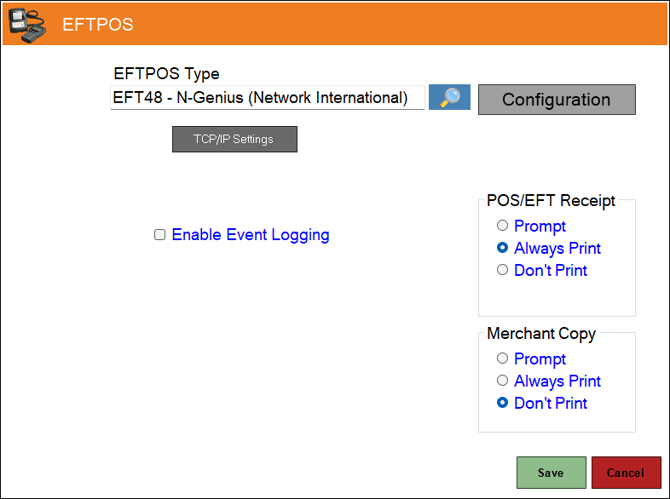
- EFTPOS Type - Select from the drop-down list the EFT48 - N-Genius (Network International) option. Refer HERE for more information.
- POS/EFT Receipt - Select from one of the Print options available. Also, if a full receipt option is required, select the Full Receipt option. This option is used to control whether the customer's/cardholder's receipt generated by the PIN Pad needs to be printed at the end of the payment being taken.
- Prompt – Select to show the transaction result and prompt to confirm the printing of the customer's/cardholder's receipt.
- Always Print – Select to just print the customer's/cardholder's receipt automatically.
- Don’t Print – Select to never print the customer's/cardholder's receipt.
- Full Receipt - Select to the customer's/cardholder's full receipt.
Notes ...
The customer's/cardholder's copy is always added to the Touch Tax Invoice/Receipt for an order/sale. So if a Tax Invoice is being printed/re-printed at the end of an order/sale, it’ll include the customer's/cardholder's PIN Pad receipt within it.
- Configuration - Select to open the N-Genius Settings screen.
- Enable Event Logging - Select to enable. It is recommended that this is enabled when testing or when troubleshooting an issue.
- Merchant Copy - Select from one of the Print options available. This option is used to control whether the merchant receipt generated by the PIN Pad needs to be printed at the end of the payment process. This is not stored/written back into a Touch order/sale, so it is only available end of the payment process.
-
- Prompt – Select to show the transaction result and prompt to confirm the printing of the merchant's copy.
- Always Print – Select to print the merchant's receipt automatically.
- Don’t Print – Select to never print the merchant's receipt.
-
N-Genius Settings Screen ▲ ▼
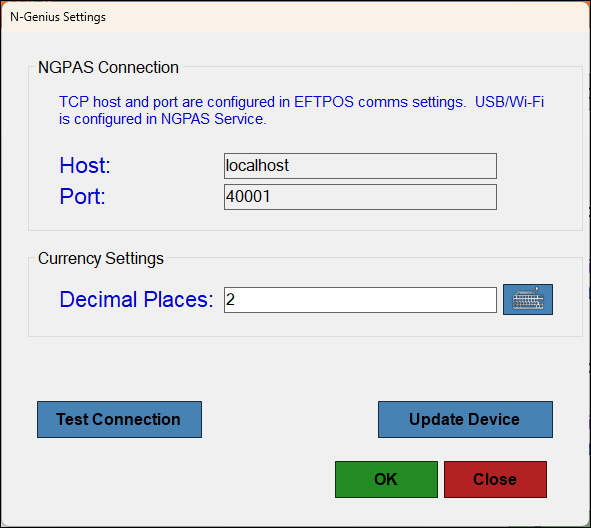
NGPAS Connection Section
- Host - Display/Enter the Host Name or IP Address of the PC server.
- Port - Enter the number.
Currency Settings Section
-
Decimal Places - Displays/Enter the number of decimal places.
- Test Connection - Select to test the EFTPOS device.
- Update Device - Select to update the EFTPOS device.
- OK - Select to save changes and exit the screen.
- Cancel - Select to exit the screen without saving the changes.
End of article ▲