
This outlines How To Change A PIN for a Clerk/Staff Member in Touch.
Subjects ▲ ▼
What Is Required? ▲ ▼
- Clerk/Staff will need to exist in Back Office and be configured with the appropriate authorisation to ensure they are able to login to operate Touch.
When Is This Used? ▲ ▼
When the need arises that a PIN requires to be changed for a Clerk/Staff Member.
How To Change A PIN? ▲ ▼
Once the What Is Required? above has been completed, then:
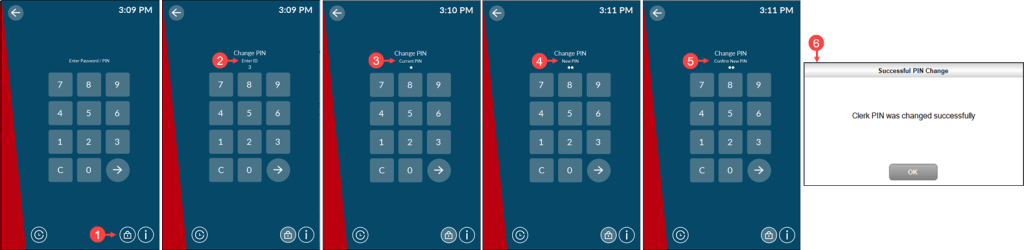
- Select the Change Pin icon.
- Enter the Clerk's/Staff Member's ID.
- Enter their current PIN.
- Enter the new PIN.
- Enter the new PIN again to confirm.
- The Change PIN is successful prompt will display when the change was successful.
End of article ▲