
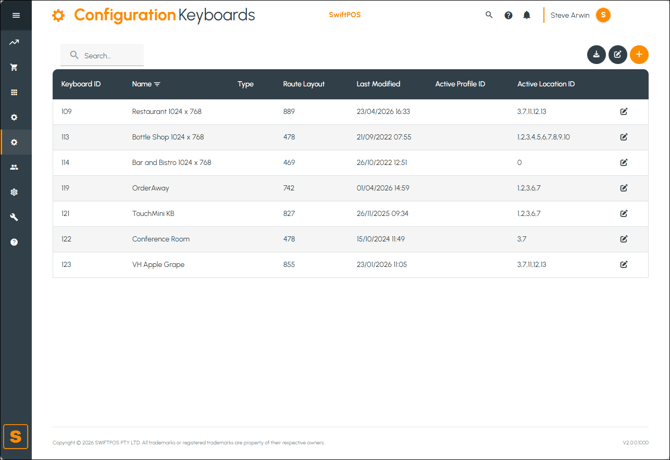
To access, select the Keyboards option in the Configuration menu in Swiftpos HQ.
Subjects ▲ ▼
About ▲ ▼
When Is It Used? ▲ ▼
Used to manage and view Keyboards.
How To? ▲ ▼
Screens ▲ ▼
Keyboards Screen ▲ ▼

-
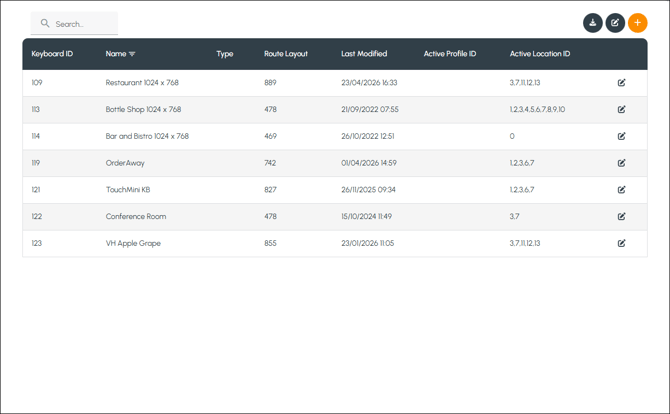
Left-hand Side - Displays a search option that can be used to search by entering attributes of a Keyboard. For example ID, Name, Location, etc.
-
Right-hand Side - Displays action icons for the following:
- Download - Select to export the selected Keyboards listed as an Excel file.
- Edit - Select to enter edit mode to enable the editing of Keyboards listed.
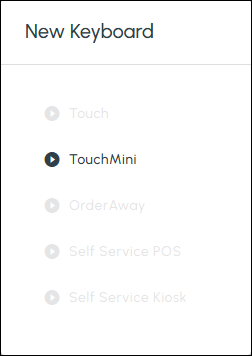
- Add - Select to display the following prompt to select the type of device for which the Keyboard is being added.
The grid will display in one of the following modes:
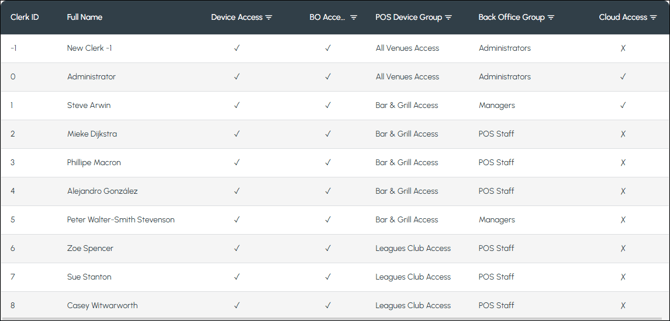
Lists the Keyboards along with their ID, Name, Type, Route Layout, Last Modified details, Active Profile ID and Active Location IDs.
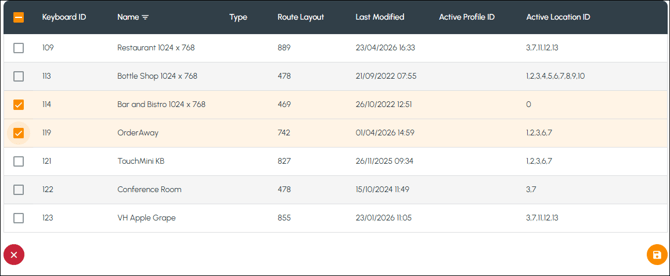
Lists the Keyboards along with those attributes that can be edited. For example, Name, Type and Route Layout. Also, the following editing options are displayed:
- Delete Checkbox - Select to select the selected Keyboards. Displayed in the grid's header on the left-hand side.
- Select Checkboxes - Select to select a Keyboard. Displayed to the left of each Keyboard listed.
- Close - Select to exit edit mode without saving changes. Displayed in the grid's footer on the left-hand side.
- Save - Select to save changes and exit edit mode. Displayed in the grid's footer on the right-hand side.
End of article ▲