Skip to content
English
  • There are no suggestions because the search field is empty.

Transactions

Cloud Back Office - Menus - Analytics

cbo-analytics-transactions-1


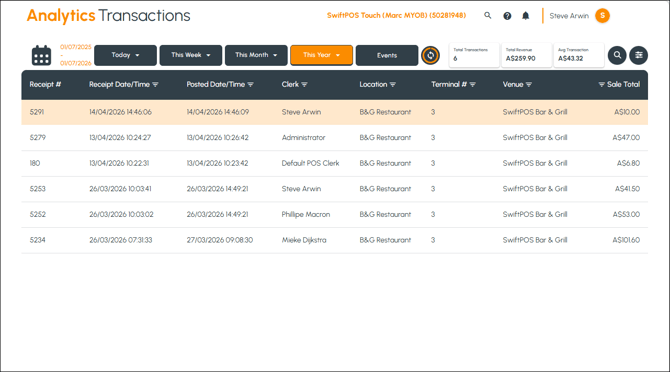
To access, select the Transactions option from the Analytics menu. 

Used to search and view transactions as well as view the details of individual Transactions (receipts) can also be downloaded and/or printed. Only transaction that have been processed and sent to Back Office can be viewed.


Screens     


Advanced Filters Screen     


cbo-analytics-transactions-1e


To access, select the Advanced Filters icon in the header section. Used to further filter the transactions displayed in the grid by selecting one or more of the filter options listed. Select the Apply option to apply the filters.


Transactions Screen     


cbo-analytics-transactions-1a


Sections     


Filters Section      


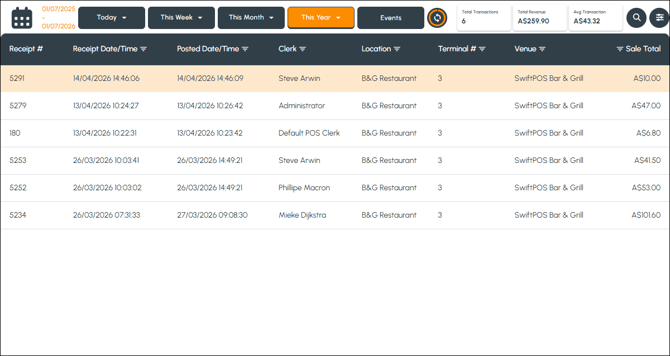
Used to filter the data displayed in the grid. Refer HERE for more information. Also displays sales and revenue statistics.


  • Advanced filters - Select the icon to open the Advanced Filters screen to further filter the data.


Grid Section     


cbo-analytics-transactions-1c


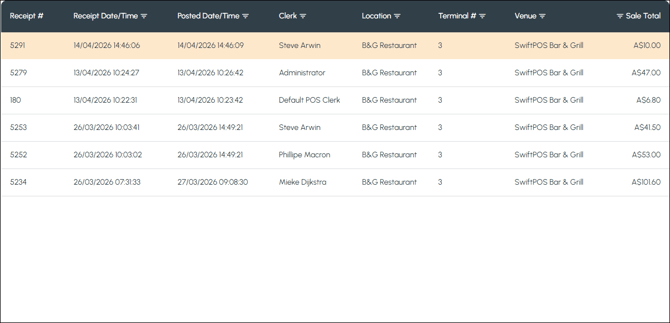
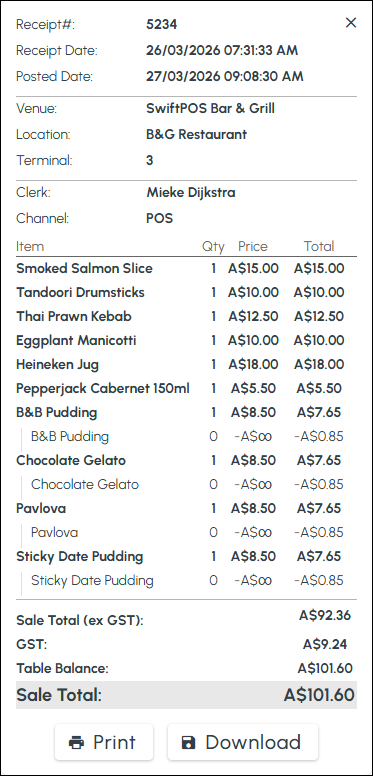
Lists the transactions based on the filters selected along with their Receipt number, Receipted date/time, Posted date/time, Clerk, Location, Terminal, Venue and Sale Total. Select a transaction to display it's details.


Transaction Detail Section     


cbo-analytics-transactions-1d


End of article