
Subjects ▲ ▼
About ▲ ▼
What Is It? ▲ ▼
Barcodes are normally added in Back Office to items/products, purchased from suppliers, that have barcodes. When the barcode is scanned at a Touch device or PDE, the item/product associated with it will automatically be recognised. Items/Products that do not have valid barcodes can be assigned any unique number and then used to create Product Labels.
Barcodes are normally 8-13 digits in length. When you scan a barcode at a Touch device, it searches for the item/product based on a matching barcode. If PLU numbers are going to be used as barcodes, then ensure the barcode added to an item/product is PLU number fo the same item/product.
WARNING
Do NOT have barcodes that are less than 6 digits because these can get confused with PLU numbers that might be linked to other items/products. If, for example an item/product had a PLU of 123456 and another item/product had a barcode of 123456 than it is likely that the wrong item/product is returned when the barcode is scanned.
What To Consider? ▲ ▼
- Do NOT have barcodes that are less than 6 digits because these can get confused with PLU numbers that might be linked to other items/products.
When Is It Used? ▲ ▼
Used to add barcode numbers to items/products in Back Office.
How To? ▲ ▼
Screens ▲ ▼
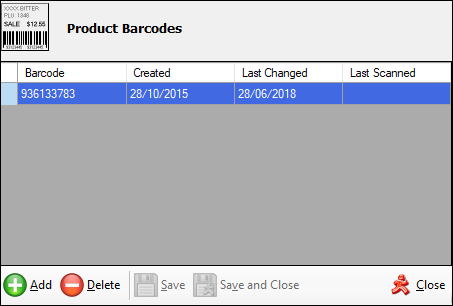
Product Barcodes Screen ▲ ▼
To access, select the Barcodes option in the Product Full Edit screen in Back Office.
Sections ▲ ▼
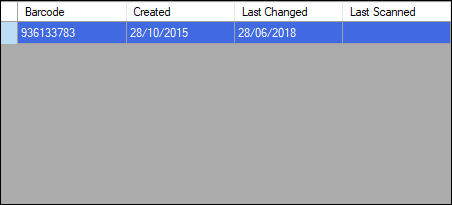
Lists the:
- Barcode - Displays existing barcodes assigned to the item/product.
- Created - Displays the date the barcode was created.
- Last Changed - Displays the last time the barcode was changed.
- Last Scanned - Displays the date the barcode was last scanned.

- Add - Select to add a new barcode to the selected item/product.
- Delete - Select to delete the selected barcode.
- Save - Select to save changes.
- Save and Close - Select to save changes and exit.
- Close - Select to exit.
End of article ▲