
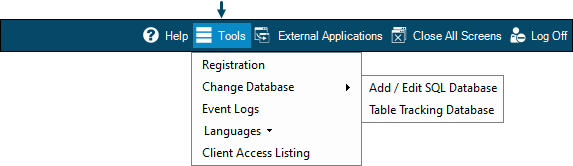
- Registration - Select to open the Software Registrations screen and view the current Registrations applicable.
- Change Database - Select from the menu one of the following options to change the connection to an alternative database:
- Add / Edit SQL Database Connections - Select to open the SwiftPOS - SQL Connect to Server screen to configure the settings required to establish a connection to the Back Office SQL Server.
- Table Tracking Database Connection - Select to open the Connect to Server screen to configure the settings required to establish a connection to the Table Tracking SQL Server.
Notes ...
The Change Database option is only used if a Venue is running multiple versions of the swiftpos Back Office and Table Tracking databases:
- Event Logs - Select to open the Event Log Reader and view the logs of swiftpos Services.
- Languages - Select to open the Languages screen and change the default language.
- Client Access Listing - Select to open the Current Client Access List screen to view a list of users connected to the Back Office or logged in via SQL.
End of article ▲