
This outlines the How To Move Layouts Between Keyboards.
Subjects? ▲ ▼
About ▲ ▼
What Is Required? ▲ ▼
- Multiple Keyboards must already exist with Layouts configured.
When Is It Used? ▲ ▼
Used when a Keyboard Layout is required to be moved from one Keyboard to another.
How To? ▲ ▼
How To Move Layouts Between Keyboards? ▲ ▼
In Back Office, do as follows:
-
Select the Keyboards option in the Touch Settings menu, to open the Keyboards screen.
- Select the Keyboards menu in the Toolbar.
- Select the Open Keyboard option in the footer section, to open the Touch Keyboards screen.
- Select the Keyboard which contains the Layout to be viewed.
- Select the Keyboard Tree View option in the View menu in the Toolbar to open the Keyboard Tree View / Edit screen.
- Expand the tree structure to display the Keyboard in which the Layout is located that needs to be moved.
- Select the Layout and drag and drop it onto the Keyboard to which it is to be moved to.
- The Layout will now appear in the Keyboard selected above.
Notes ...
If the Layout being moved already exists in the destination Keyboard, then the following prompt will be displayed: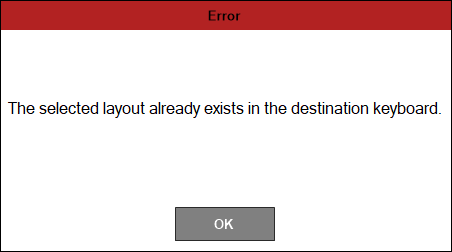
End of article ▲