
This outlines the How To Export Gift Cards/Vouchers from and old SWIFTPOS database, for importing into a new SWIFTPOS database.
How To? ▲ ▼
To export Gift Cards/Vouchers, do as follows:
- Run the following SQL query against the old SWIFTPOS database using Microsoft SQL Server Management Studio:
| SELECT [VoucherBarcode] ,[Trigger_StoredValue] FROM [OLDSWIFTPOS].[dbo].[VoucherLedgerTable] where Trigger_StoredValue > 0 |
- Replace the OLDSWIFTPOS with the actual name of the old SWIFTPOS database.
- Execute the Query.
- Right select on a row in the Results section and select the Save Results As ... option to save the results as a CSV file.
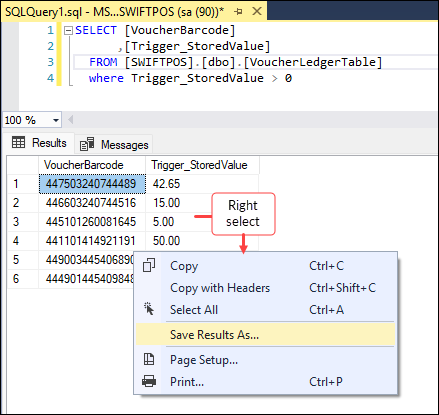
- For example, OldGiftCards.csv:
| VoucherBarcode,Trigger_StoredValue 447503240744489,42.65 446603240744516,15.00 445101260081645,5.00 441101414921191,50.00 449003445406890,10.50 444901445409848,15.00 |
- Remove the first (Header) row in the created CSV file and save it. For example:
| 447503240744489,42.65 446603240744516,15.00 445101260081645,5.00 441101414921191,50.00 449003445406890,10.50 444901445409848,15.00 |
IMPORTANT
The barcodes listed in the first field of the CSV file (for example, 447503240744489) MUST NOT already be used in the new SWIFTPOS database the file is going to be imported into, as this will result in duplicates.
- The file can now be imported by selecting the Import Mapping and Values from File option and then selecting the Mapping String and Stored Value option. Make sure the File includes PIN option is NOT selected. Refer HERE for file specification information.
- Once successfully imported, ensure the Gift Cards/Vouchers are removed from the old SWIFTPOS database. To do this, do as follows:
- Run the following SQL query against the old SWIFTPOS database using Microsoft SQL Server Management Studio:
| DELETE FROM [OLDSWIFTPOS].[dbo].[VoucherLedgerTable] where Trigger_StoredValue > 0 |
End of article ▲