
This outlines the How To Delete A Keyboard Layout.
Subjects? ▲ ▼
About ▲ ▼
What Is Required? ▲ ▼
- A Keyboard must already exist with more than one Layout configured.
When Is It Used? ▲ ▼
Used when a Keyboard Layout is no longer needed for a Keyboard, nor scheduled for use, and is required to be removed.
How To? ▲ ▼
How To Delete A Keyboard Layout? ▲ ▼
In Back Office, do as follows:
-
Select the Keyboards option in the Touch Settings menu, to open the Keyboards screen.
- Select the Keyboards menu in the Toolbar.
- Select the Open Keyboard option in the footer section, to open the Touch Keyboards screen.
- Select the Keyboard which contains the Layout to be deleted.
- Using the Left/Right arrows or the Layout drop-down list in the Layout section, navigate to and select the Layout to be deleted.
- Once the Layout is displayed, select the Remove Layout option in the Layout menu in the Toolbar.
- A prompt will be displayed requiring confirmation to proceed with the deletion of the Keyboard.
- Select Yes to proceed with the deletion.
Notes ...
If the Keyboard Layout selected for deletion is a linked Keyboard Layout, a prompt similar to the one below will be displayed. For example: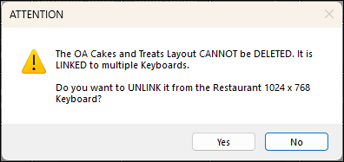
To ensure it is NOT available to the Keyboard that is currently open, select the Yes option to Unlink it. The Layout will remain available to other Keyboards that it is linked to.
- The Layout will no longer be listed in the Layout Tree View of the Keyboard currently open. Refer HERE for more information.
End of article ▲