
This outlines the How To Add / Clear Keyboard Layout Images.
Subjects? ▲ ▼
About ▲ ▼
What Is Required? ▲ ▼
When Is It Used? ▲ ▼
Layout Images are used in Keyboards as backgrounds and banners for Self-Service styled Keyboards only. They are normally added in a:
- Self-Service Kiosk
- As a background to the following Layouts:
- Out Of Service
- Start
- As a banner to the following Layouts:
- Checkout
- Master
- Menu
- Order Type
- Summary
- Upsell
- As a background to the following Layouts:
- Self-Service POS
- As a background to the following Layouts:
- Master (for the sales grid only)
- Menu (for the sales grid only)
- Out Of Service
- Start
- As a background to the following Layouts:
How To? ▲ ▼
How To Add A Keyboard Layout Images? ▲ ▼
For example, in order to add a background image to the Start Layout of a Self-Service POS, do as follows in Back Office:
-
Select the Keyboards option in the Touch Settings menu, to open the Keyboards screen.
- Select the Keyboards menu in the Toolbar.
- Select the Open Keyboard option in the footer section, to open the Touch Keyboards screen.
- Select the Self-Service POS Keyboard.
- Using the Left/Right arrows or the Layout drop-down list in the Layout section, navigate to and select the Start Layout to be renamed.
- Once the Layout is displayed, select the Add a Layout option from the Layout menu to open the Images Menu.
- Select and image from the images listed in the grid or select the Add option to add a new image and select it.
- Select OK to add the selected image to the Layout.
- Select Save the changes.
- Ensure a Full Update is sent to the required Touch terminals that will be making use of the Self-Service POS Keyboard.
- The selected background image should now be displayed in the Start Layout. Refer HERE for more information for Self-Service Kiosk and HERE for Self-Service POS.
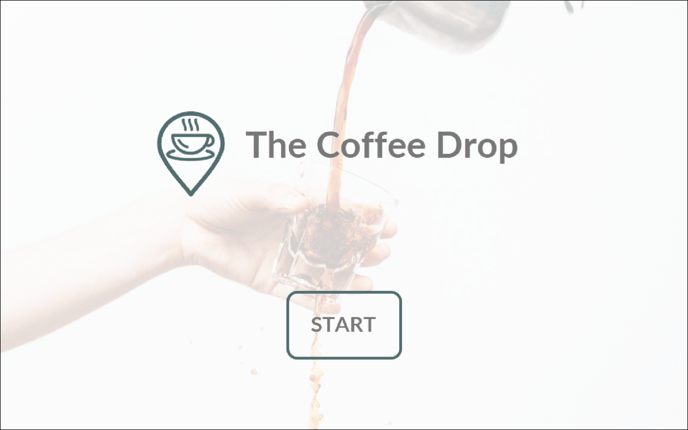
- Example of an image added for the Start Layout.
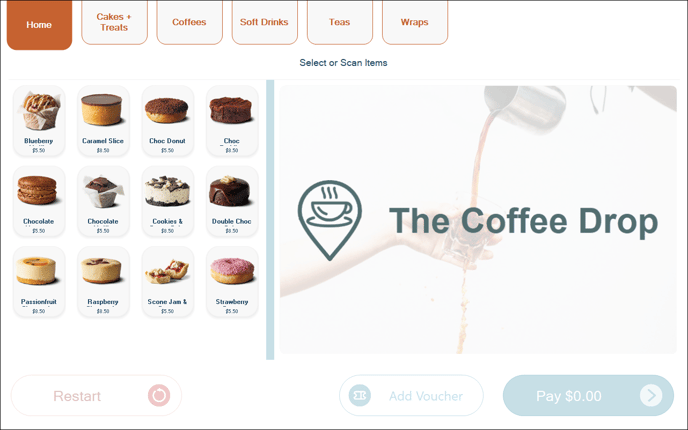
- Example of an image added to a Master or Menu Layout and used as a background image in the sales grid prior to items being added to an order.
End of article ▲