
This outlines How To Set Back Office to Run as Administrator.
How To? ▲ ▼
As a result of recent changes to Back Office to comply with some of our customers' security requirements Back Office will need to be opened as Administrator to ensure unencumbered access to the likes of the following:
- Services
- Database Reset & Upgrade.
- Installing SQL Shield.
IT Managers/System Administrators will need to be aware that Swiftpos software requires access to the following folders:
- %ALLUSERSPROFILE%\Samford Software (Read/Write)
- %APPDATA%\Samford Software (Read/Write)
- Also, registry access is only required for things like Services, etc. which would be applicable to an Admin user and not a normal user.
Set Back Office to Run as Administrator ▲ ▼
Do as follows:
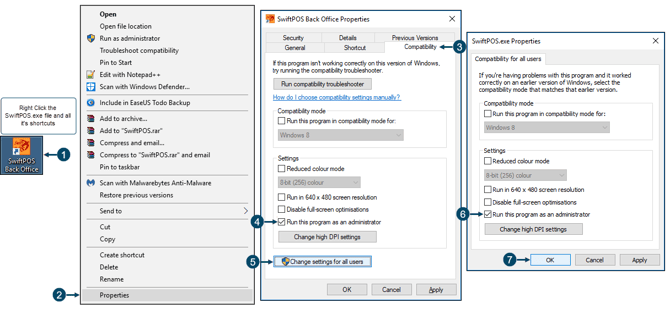
- Right select the C:\Program Files (x86)\Samford Software\BackOffice\SwiftPOS.exe file.
- Select Properties.
- Select the Compatibility tab.
- Select the Run this program as an administrator option, to set for ONLY the Admin user.
- Select the Change settings for all users button.
- Select the Run this program as an administrator option.
- Select OK.
- Repeat the above for each of the shortcuts for the Swiftpos.exe file.
End of article ▲