
Notes ...
If a Venue is registered for the Events Module, then the Areas option will appear in the Events menu in Back Office.
Subjects ▲ ▼
About ▲ ▼
What Is Required? ▲ ▼
- Swiftpos v10.79.15+
- The Enable Email Activity Logging option in Global Preferences will need to enabled.
When Is It Used? ▲ ▼
Used to view and manage email activity from within Back Office, in order to be able to confirm what was generated, identify delivery failures and troubleshoot email-related issues.
Screens ▲ ▼
Delete Email Activity Records Screen ▲ ▼
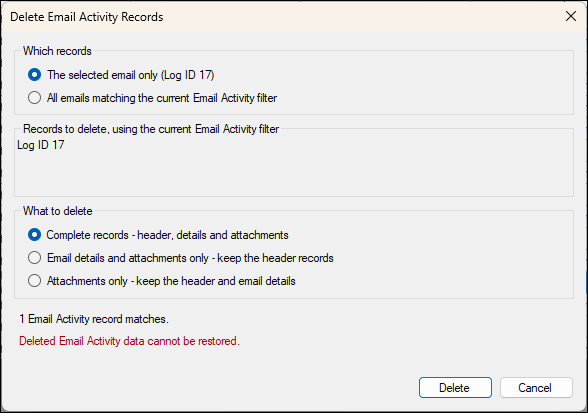
To access, select the Delete option in the Tools drop-down list in the footer section of the Email Activity screen.
Email Activity Screen ▲ ▼
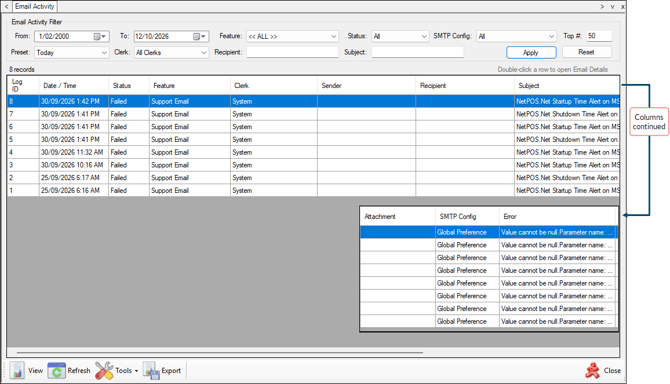
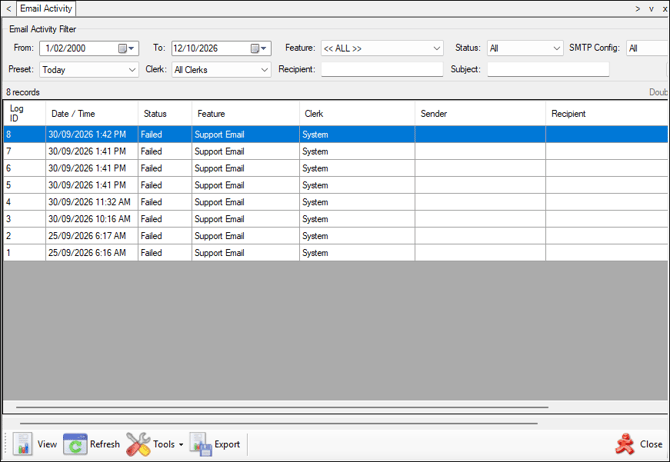
To access, select the Email Activity option from the Administration menu in Back Office. Used to view and manage email activity from within Back Office, in order to be able to confirm what was generated, identify delivery failures and troubleshoot email-related issues.
Sections ▲ ▼
Header Section ▲ ▼

Used to limit the number of rows displayed in the grid section. Once all filters have been selected, select the Apply option to apply them. Otherwise, select the Reset option to clear all filters.
Grid Section ▲ ▼
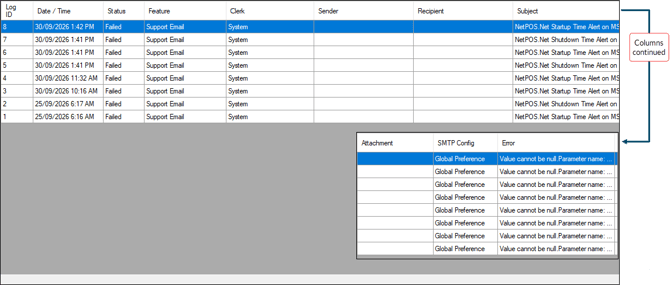
Lists the emails returned as a result of the filters selected in the header section, along with their Log ID, Date/Time, Status, Feature, Clerk, Sender, Recipient, Subject, Attachment, SMTP Config and Error data.
Footer Section ▲ ▼
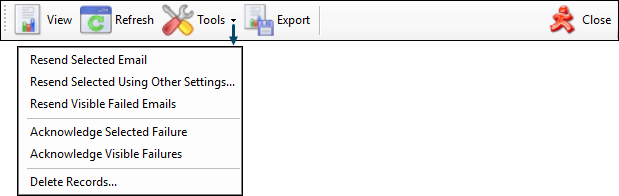
- View - Select to open the Email Details screen to view the selected email.
- Refresh - Select to refresh the grid section.
- Tools - Select to from the drop-down list of options available to either:
- Resend Selected Email
- Resend Selected Using Other Settings
- Resend Visible Failed Emails
- Acknowledge Selected Failure
- Acknowledge Visible Failures
- Delete Records - Select to open the Delete Email Activity Records screen.
- Export - Select to export the contents of the grid to a CSV formatted file.
- Close - Select to exit.
Email Details Screen ▲ ▼
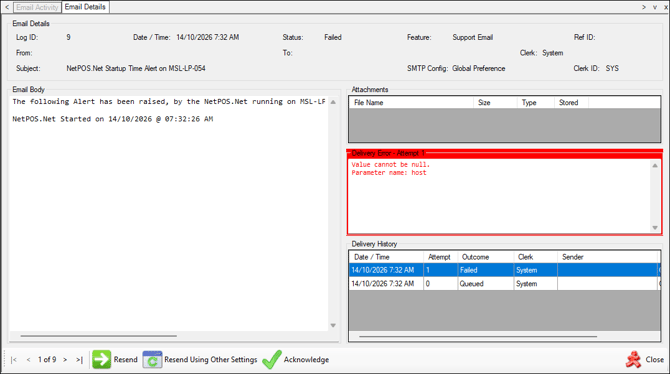
To access, select the View option in the footer section of the Email Activity menu in Back Office. Used to view the content and manage the selected email.
Sections ▲ ▼
Email Detail Section ▲ ▼

Displays the details associated with the selected email.
Email Body Section ▲ ▼
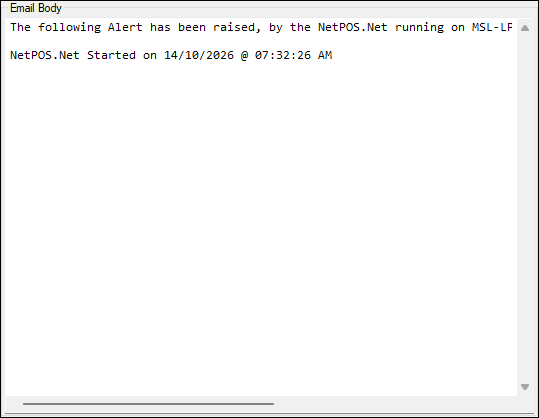
Displays the content (body) of the selected email.
Attachments Section ▲ ▼

Lists attachments along with their File Name, Size Type and Stored data. For attachments to be listed the Log Email Attachments option in Global Preferences will need to be enabled.
Delivery Error Section ▲ ▼
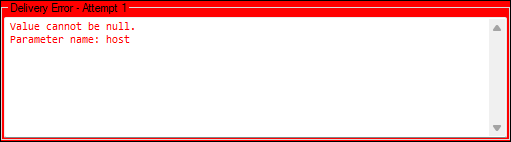
Displays delivery error information associated with delivery record selected in the Delivery History section.
Delivery History Section ▲ ▼
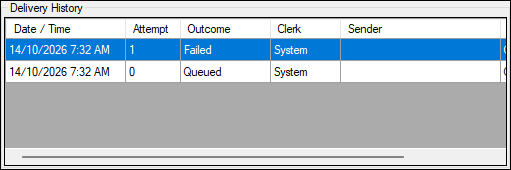
Lists the history of the delivery attempts made to send and resend the selected email. Lists the attempts along with their Data/Time, Attempt count, Outcome, Clerk and Sender data.
Footer Section ▲ ▼

- Resend - Select to resend the selected email in the grid section.
- Resend Using Other Settings - Select to resend the selected email in the grid section using other SMTP settings.
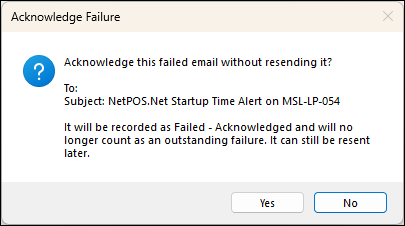
- Acknowledge - Select to acknowledge the selected failed email without resending it. Once selected, the following prompt will be displayed:
- Close - Select to exit.
End of article ▲