
Notes ...
If a Venue is registered for the Events Module, then the Areas option will appear in the Events menu in Back Office.
Subjects ▲ ▼
About ▲ ▼
When Is It Used? ▲ ▼
Used to configure Areas that can then be associated with a Location.
Screens ▲ ▼
Areas Screen ▲ ▼
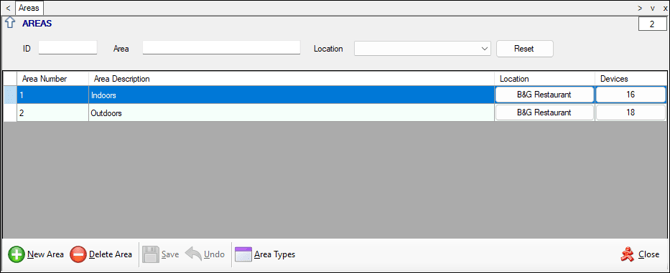
To access, select the Areas option from the Administration menu in Back Office. Used to configure Areas that can then be associated with a Location.
Sections ▲ ▼
Header Section ▲ ▼

Provides filters to limit the number of Areas listed in the grid. The filters available are ID, Area and Location. Select the Reset option to clear all filter selections.
Grid Section ▲ ▼
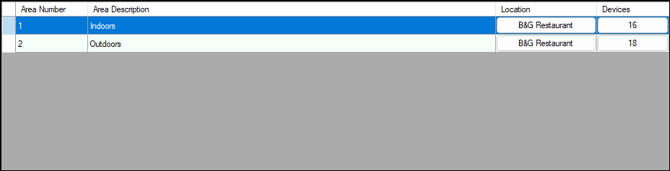
List the Areas currently configured along with their Number, Description, Location and Devices.
Noteworthy
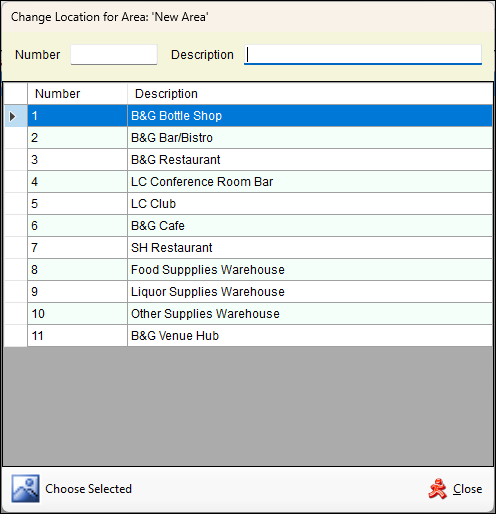
- Location - Select to open the following screen to select a Location.
Notes ...
If an existing Location selection is being changed and the Area has devices assigned to it, the following prompt will be displayed:
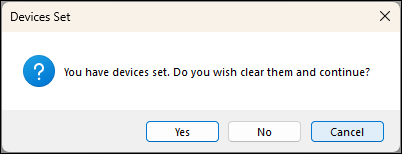
Select Yes to proceed and clear the devices assigned to the Area.
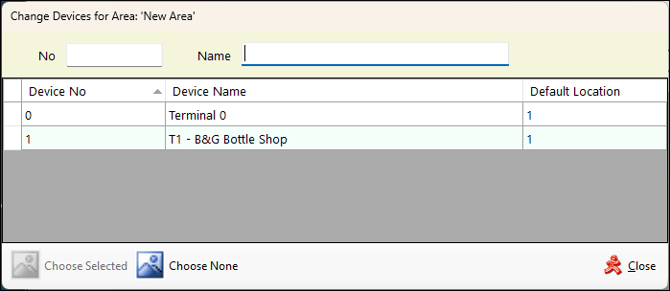
- Devices - Select to open the following screen and select the devices to be assigned to the Area.
Footer Section ▲ ▼

- New Area - Select to add a row to the grid to add a new Area.
- Delete Area - Select to remove the selected row in the grid and delete the Area.
- Save - Select to save the changes.
- Undo - Select to undo the changes made.
- Area Types - Select to open the Event Area Types screen.
- Close - Select to exit.
End of article ▲