

This provides an overview of the Swiftpos Admin API, that is used to gain access to Swiftpos data.
The content is targeted at Resellers and Swiftpos Venue administrators who have a sound knowledge of and experience with Swiftpos . For further information or assistance, please contact your Swiftpos Reseller or Swiftpos Support.
Refer HERE and HERE for Reseller & Support information.
Subjects ▲ ▼
What Data Is Accessible? ▲ ▼
To view the data that is currently accessible when using the Swiftpos Admin API, select one of the following regional URls:
- AU - https://api.swiftpos.com.au/swagger
- UK - https://api.swiftpos.uk/swagger
- EU - https://api.swiftpos.eu/swagger
What Is It? ▲ ▼
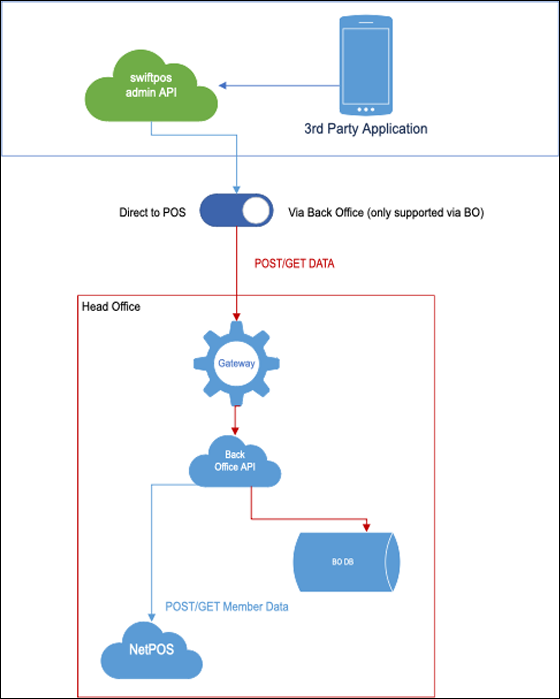
The Swiftpos Admin API allows 3rd party applications to access Swiftpos data such as Authorisaton, Category, Classification, Country, Diagnostic, Event, Family, Group, Media, Member, Order, Product, Sale, Transaction, Voucher, etc. For the most up to date list of Swiftpos data that is accessible via the API, refer HERE.
It uses a Cloud based API (Rest API) to access Swiftpos endpoints (paths) against which designated operations can be requested to access to Swiftpos data.
It is a rebrand of the formerly known Swiftpos Cloud API.
It makes use of the Swiftpos Gateway Client Service to establish connectivity via the Swiftpos Admin API, to post/pull Member, Product, Sales and Voucher data directly from/to the Swiftpos Back Office Database.
What Is Required? ▲ ▼
- Web Server - A Web server (for example, IIS) must be installed and running. Refer HERE for more information.
- Swiftpos
- Swiftpos v10.58+
- Registration - A Web API Location licence will be required for each Location within a Venue for which a 3rd party application is required access to using the Swiftpos Admin API.
- Server - Access to the Swiftpos Back Office server and with the authority to start Back Office with the right click Run as the Administrator option selected.
- Back Office
- Services - The following services need to be installed and running:
- Connect
- Gateway Client - This service needs to be installed and will only start when a cloud connectivity Location is Activated. Once activated, the Gateway Client service will be started. It facilitates the communication from the Venue’s Swiftpos Back Office server to the Swiftpos Orderaway Cloud Server. This will be an outbound secure amqp internet connection to the Cloud.
- Sales Processing
- Service Monitor
- Clerks
- Authentication to Swiftpos at a Venue - Refer HERE for more information.
- Ensure the appropriate permissions are granted to the Clerk Security Group configured in the Security Groups menu option in Back Office, namely:
- Web
- Web API (ensure this option is selected so that all it's sub options are selected).
- Web
- Cloud Onboarding - The Venue hosting the Swiftpos application will need to be Cloud Onboarded. Refer HERE for more information.
- Cloud Connectivity
- Locations - Venues will need to add each Location that is going to be making use of the Swiftpos Admin API and then also ensure each of them is activated. Refer HERE for more information. When activating a Location, ensure the Submit orders directly to POS terminal option is selected. This will ensure that for Orderaway and Touchmini the POS API is used. For 3rd party application integrator calls, the POS API is NOT used and instead calls are sent to Back Office.
- NetPOS - The NetPOS tab must be configured when 3rd party application integrators want to make use of the following types of Swiftpos Admin API calls:
- Members
- Orders - All Orders must have a Member assigned, including Orders placed by guest Members.
- Products - For 3rd party application integrators to make Product calls using the Swiftpos Admin API, Products must be assigned to a Family, and it must be Web enabled.
- Services - The following services need to be installed and running:
- Touch
- Also, consideration may need to be given to the Finalise Remote/Web Order options available within the Orders tab in Table Tracking.
- An Orders Master terminal must be enabled and ensure it has the Enabled option selected in the Orders tab.
What To Consider? ▲ ▼
API Call Change ▲ ▼
An API call must now include the URL. Refer HERE for more information. For example:
- A current API call using the local WebAPI may look something like this:
http://127.0.0.1/WebAPI/api/Product
- Based on the above, the same call using the Swiftpos Admin API will then look like this:
https://api.Swiftpos.com.au/api/Product
Http Header Change ▲ ▼
If previously the Local WebAPI was being used, then the following will need to be considered:
- The HTTP Header Key name will need to be changed from ApiKey to AuthorizationToken.
Swiftpos Database ▲ ▼
To ensure the Swiftpos Back Office database is in Test mode, select the Testing Database button in the Registration screen.
Testing Credentials ▲ ▼
The following URL is available to test the Swiftpos Admin API using Swagger:
https://api-test.Swiftpos.com.au/swagger/
https://api-test.Swiftpos.com.au
To test the Swiftpos Admin API in a Test environment, the following credentials can be used to facilitate this:
- "ClerkId": 0,
- "ClientId": 670147,
- "CustomerId": 66885289,
- "Signature": "Swift-API-Demo",
- "Identity": "bcc64087-9471-445a-9d93-6575502fb12c"
Refer to SwiftPOS API (CLOUD) in the Reseller Help for more information.
URLs ▲ ▼
The URLs for the Swiftpos Admin API in:
-
Production are:
- AU - https://api.swiftpos.com.au
- UK - https://api.swiftpos.uk
- EU - https://api.swiftpos.eu
- Using Swagger - https://api.Swiftpos.com.au/swagger
- Test are:
- AU - https://api-test.swiftpos.com.au
- Using Swagger - https://api-test.Swiftpos.com.au/swagger
When Is It Used? ▲ ▼
It is used to gain access to Swiftpos Sales, Member, Product and Voucher information, and is available to 3rd party application integrators.
Increase Security - The Swiftpos Back Office API replaces the Local WebAPI. The Swiftpos Back Office API removes the risks and offers a more secure connection method. The connection is a HTTPS secure, VPN-less and encrypted connection, where data can be posted/pulled, including, Member, Product, Sales and Voucher information. Swiftpos Back Office API requires a secure integrator key for each 3rd party application. The integrator key must be matched with on premise credentials and only then will an authorisation token be generated for that 3rd party application.
Consistency and Simplicity - This feature development brings 3rd party application connection infrastructure in line with Swiftpos Orderaway and Touchmini. The development means further consistency when setting up all three applications. Venues will no longer need to setup port forwarding via routers to connect the Local Web API through to 3rd party applications. 3rd party applications will now have the same configuration setting as Orderaway and Touchmini, simplifying the onboarding process.
From an operational standpoint and 3rd party application connection, nothing changes. Once the GET STARTED process has been completed, existing 3rd party applications will instantly connect through via the Swiftpos Admin API to the Swiftpos Back Office API.
End of article ▲